Building The India Portfolio #8 – MegaJSONEditor: Natural Language JSON Editing
Are Ctrl+F and Ctrl+H still your weapons of choice when editing JSON files? Do you find yourself writing custom Python scripts for what should be a two-minute task?
If you work with JSONs in the age of LLMs, you know the pain all too well. The JSON files we deal with today are bigger, messier, and often generated by AI models that don't quite follow consistent formatting. Cleaning up LLM-generated responses, normalizing API data, or scrubbing sensitive fields from database exports - it all requires either tedious manual work or throwaway scripts.
But what if you could just tell your editor what to do?
"Delete all objects where status equals inactive."
"Add a 'processed' field with value true to all items."
"Strip newlines from the description field."
Today, we introduce MegaJSONEditor - a complete reimagining of JSON editing for the LLM age. AI-powered natural language commands. Full undo/redo history. Smart schema detection. And yes, everything happens in your browser - your data never touches our servers, not even for AI processing.
Quick Links
Why We Built The MegaJSONEditor
You might remember our original JSON Editor. It solved real problems - smart field-aware searching, bulk updates, and client-side privacy. Hundreds of users found value in it.
But as we watched and heard back on how people used it, patterns emerged:
Users wanted to describe and not just click - the most common feedback was - "Can I just type what I want to do?" People would describe their intent in support messages, then we would explain which buttons to click. But, the gap between users' need and what the old tool offered, was clear.
Complex edits required too many steps or were not possible in the old editor - conditional updates needed careful parameter configuration. Chaining multiple edits was tedious.
Undo capabilites were limited - one wrong bulk operation and users had to reload their original file. The "staging & preview" system helped, but people wanted true version control.
Schema understanding was limited and the old tool struggled with deeply nested data.
So we rebuilt. From scratch. MegaJSONEditor is not an update - it's a next-generation tool designed for how people actually want to work with data today.
The Problem with Existing Tools
Let's revisit why JSON editing is still painful, even in 2026.
The Fundamental Challenges
Finding specific data is tedious. Ctrl+F searches your entire file indiscriminately. Looking for objects where status is "active"? You'll get every "active" string in the file - in descriptions, comments, unrelated fields. There's no field awareness.
Bulk changes are risky and manual. Want to update a field across 500 objects? You're either editing each one manually (slow, error-prone) or writing custom code (time-consuming, one-time use). Adding or deleting fields conditionally requires even more scripting.
Structure gets destroyed easily. One misplaced comma or bracket in a text editor corrupts your entire JSON. There's no safety net, no preview, and no easy recovery.
Sensitive data requires careful handling. Scrubbing PII, normalizing fields, analyzing logs - uploading to online tools means your data passes through third-party servers. That's often not an option.
Why Existing Solutions Fall Short
Text editors (VS Code, Sublime, Notepad++) offer full control but zero intelligence. Ctrl+H doesn't understand field boundaries. Replacing "false" might accidentally change text inside description fields. One syntax error breaks everything.
Writing custom code works but doesn't scale. Every editing task needs a new script. Add a field today, delete one tomorrow, update values next week - that's three scripts to write, test, and eventually forget about. For non-developers, it's simply not an option.
Online JSON editors typically offer syntax highlighting and validation - that's it. Those with editing features usually require uploading files to their servers. Your data passes through their infrastructure.
Regex-based tools handle pattern matching but can't reliably distinguish between field names and values in JSON structure. Nested objects make regex fragile and error-prone.
And here's the new gap - No existing tool combines AI-powered natural language understanding with genuine client-side privacy. Until now.
Key Features of MegaJSONEditor
- 🗣️ Natural Language Commands
This is the headline feature. Instead of navigating forms and dropdowns, just describe what you want -
- "Delete all users where status equals inactive"
- "Add a new field 'verified' with value false to all objects"
- "Update email to lowercase for all users"
- "Remove the password field from all items"
- "Strip newlines from the llm_response field"
The editor parses your intent, shows you a preview of what it understood, and waits for your confirmation before executing. You're always in control.
- 🤖 Bring Your Own AI Provider
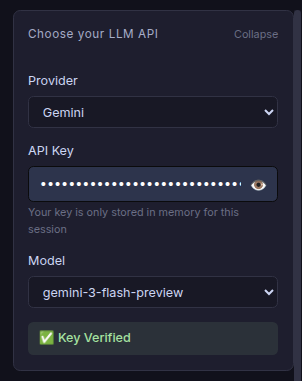
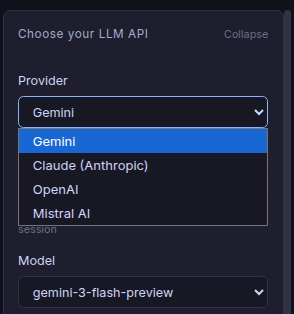
MegaJSONEditor supports four major LLM providers - Gemini, Anthropic, OpenAI and Mistral. You can choose your LLM provider and their model as per your preferences. Just use your own API key and get started. We never see your API key - it is used directly from your browser to call the LLM API. Custom model names are supported too, so you can use the latest releases or fine-tuned variants - whatever model your API key has access to.
Choose your LLM provider and model
Dropdown with all providers
- 📋 Command Templates (No AI Required, use the GUI instead)
Don't want to use AI or pay for API calls? No problem. MegaJSONEditor includes a comprehensive template library:
DELETE Templates Delete fields, delete objects conditionally, remove empty values, etc. ADD Templates Add new fields with null or default values, add nested objects, etc. UPDATE Templates Update field values to null or default values, conditional updates, update a field based on another field's value, partial string replacement, etc. Select a template, fill in the parameters using dropdowns (auto-populated from your JSON's schema), and execute. Visual, no typing required.
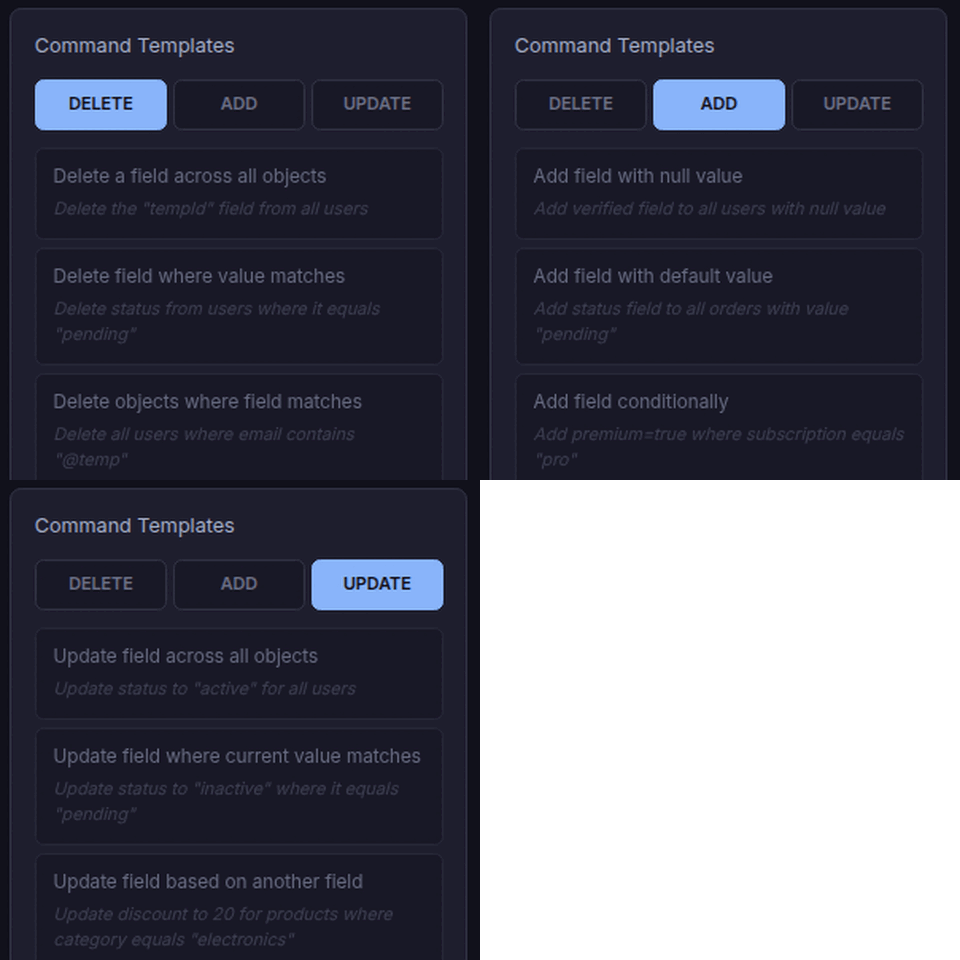
Command Templates: DELETE, ADD, and UPDATE operations
- ↩️ Full Undo/Redo History
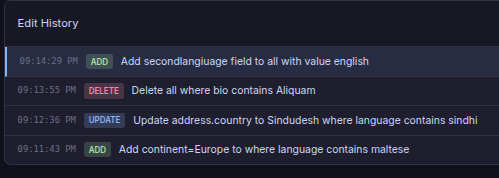
Every edit you make is recorded with a complete state snapshot. Made a mistake three edits ago? Just undo your way back. The history panel shows:
- Timestamp of each edit
- Type of operation (DELETE, ADD, UPDATE, TRANSFORM)
- Human-readable description
- Stats: objects modified, fields added/deleted
- 🧬 Smart Schema Detection
When you load a JSON file, MegaJSONEditor automatically analyzes its structure:
- Detects whether root is an object or array
- Identifies all array paths for targeting
- Extracts field names and their dominant types
- Counts total objects in the file
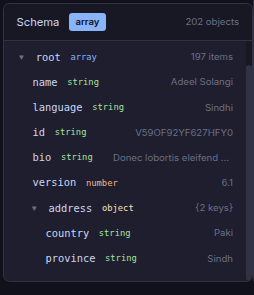
The Schema Viewer displays this information in an interactive tree. Click any path to copy it. Field types are color-coded: strings, numbers, booleans, arrays, objects.
- 🎯 Powerful Condition Operators
Conditional operations use a rich set of operators:
equals Exact value matching contains Substring matching replace match replace a piece of existing text or content with new text or content, truly selective & surgical update to a fields value as opposed to updating the whole value of the field These work in both natural language commands and templates. Example: "Delete objects where age is less than 18" or "Update status to 'archived' where lastLogin does not exist". "Replace ** in llm_response_explanation to ." .
- 💾 Staging & Preview
Before any edit is applied, you see exactly what will change. Every natural language command is parsed and displayed for your review. Every template execution shows a preview. You must explicitly confirm - there are no accidental bulk changes.
The edit queue
See the JSON schema for this file
Product Walkthrough
- The Interface
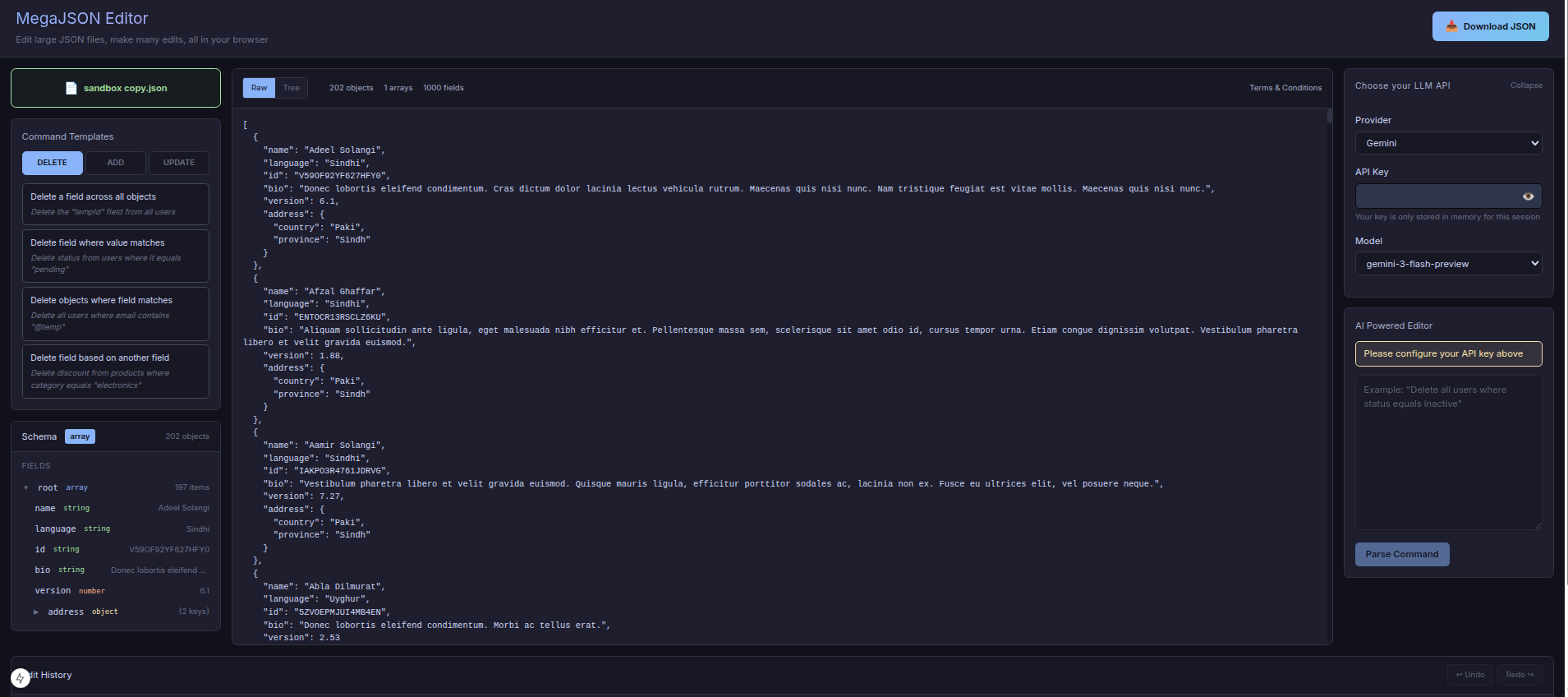
MegaJSONEditor uses a three-column layout optimized for large-screen workflows:
- Left Sidebar: File upload, Command Templates, Schema Viewer
- Center: JSON Viewer with syntax highlighting
- Right Sidebar: LLM API configuration, Natural Language Command Input
The Edit History panel sits at the bottom, always visible so you can track your progress and undo if needed.
- Loading a JSON File
Click the upload area or drag-and-drop your JSON file. The tool supports files up to 60MB (though very large files may affect browser performance). Upon loading:
- The JSON is validated for syntax errors
- Schema analysis runs automatically
- Field dropdowns are populated
- Object count is displayed
If there are unsaved changes from a previous session, you'll be warned before losing data.
- Using Command Templates
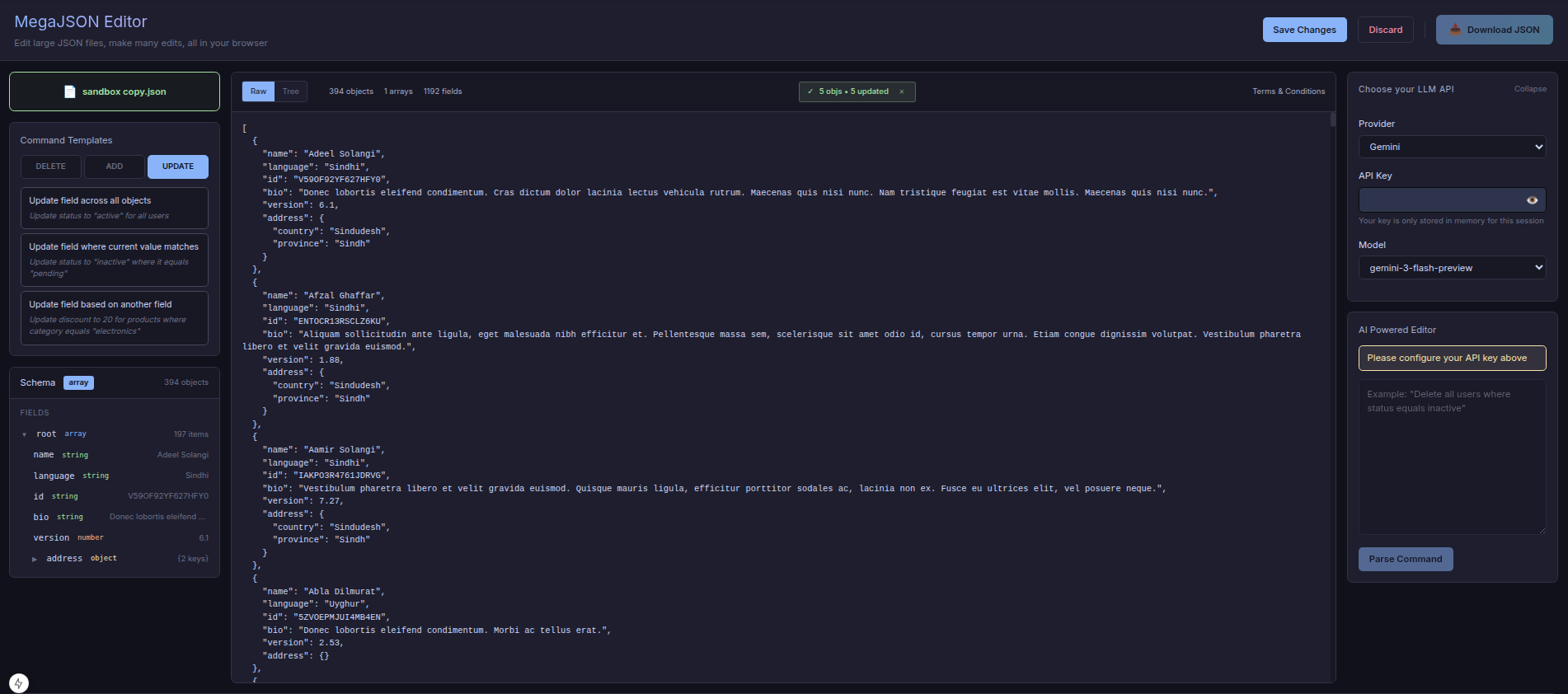
For users who prefer visual controls or don't want to use API calls:
- Select a category tab: DELETE, ADD, or UPDATE
- Click on a template (e.g., "Delete Field Where Value Equals")
- A form appears with parameter fields
- Select fields from dropdowns (auto-populated from your schema)
- Enter values as needed
- Choose match type: Equals or Contains
- Click Execute
The template shows you which array path it's targeting (e.g., "Editing data inside: users"). For UPDATE operations with "Contains" match, you can choose between replacing the Entire Value or just the Matched Part.
- Using Natural Language Commands
This is where MegaJSONEditor truly shines:
- In the right sidebar, select your LLM provider (Claude, OpenAI, Gemini, or Mistral)
- Enter your API key - it's validated in real-time
- Select a model (or enter a custom model name)
- In the text area, type your command in plain English
- Click Parse Command
- Review the parsed command(s) in the preview panel
- Click Confirm & Execute or Cancel
The preview shows each command's type (DELETE/ADD/UPDATE/TRANSFORM), a human-readable description, and the target path. If the AI misunderstood, just cancel and rephrase.
- Working with the Schema Viewer
The Schema Viewer is your map to the data. It shows:
- Root type: Whether your JSON is an object or array
- Array paths: Clickable chips for each array in your data
- Field tree: Expandable hierarchy of all fields
- Type indicators: Color-coded by data type
- Sample values: Preview of actual data
Click any path to copy it to clipboard. This is useful for constructing complex commands or understanding deeply nested structures.
- Using Undo/Redo
The Edit History panel at the bottom tracks every operation. Each entry shows:
- Timestamp
- Operation type with color coding
- Command description
- Impact stats (objects modified, fields changed)
The current state is highlighted. "Future" states (after undo) are grayed out. Click Undo to go back, Redo to go forward.
- Saving and Exporting
After making edits:
- Click Save Changes to commit pending edits to your working copy
- Or click Discard to revert to the previous saved state
- Once saved, click Download JSON to export
The download button is disabled if there are unsaved changes - this prevents accidentally downloading an incomplete edit state. The tool also warns you if you try to upload a new file when you have unsaved changes.

Privacy & Security
Let's be crystal clear about how MegaJSONEditor handles your data:
Your JSON data never touches our servers. The entire application runs in your browser. File loading, editing, schema analysis, history tracking - all client-side JavaScript. We don't have servers that process your data, and we don't want them.
LLM API calls go directly from your browser to the provider. When you use natural language commands, your browser makes a direct API call to Claude/OpenAI/Gemini/Mistral. The request goes from your browser → provider's API → back to your browser. We are not a proxy. We never see the request or response.
API keys are stored in memory only. Your API key lives in browser memory for the duration of your session. Close the tab, and it's gone. We don't use localStorage or cookies for sensitive credentials.
What about the LLM providers? This is where you should do your own due diligence. Each provider has different data retention policies. Some may use your inputs for training, others may not. Check their terms. We recommend using providers with clear data privacy commitments for sensitive data.
The bottom line: We can't see your data because we never receive it.
Use Cases
Here's how people are using MegaJSONEditor -
Cleaning LLM-generated JSON responses. AI models often produce JSON with inconsistent formatting, extra whitespace, or unwanted newlines. Strip them all in one command.
Bulk updating API response fixtures. Testing with mock data? Need to change a field across 200 test objects? Don't edit them one-by-one. Tell the editor what to change.
Scrubbing PII from database exports. Got a JSON dump with email addresses, phone numbers, or other sensitive data? Delete fields conditionally without uploading to third-party tools.
Normalizing inconsistent data fields. Some records have "Active", others have "active", others have "ACTIVE"? Transform them all to lowercase with one command.
Preparing training data for ML. Feature engineering often requires adding, removing, or transforming fields across large datasets. MegaJSONEditor handles it without code.
Migrating between API versions. Need to rename fields, add new required fields, or remove deprecated ones across your JSON fixtures? Template it once, execute across files.
Troubleshooting
- "Invalid JSON Syntax" Error
The file you're uploading has syntax errors (missing commas, unclosed braces, etc.). You'll need to fix the source file before uploading. Try validating with a JSON linter first.
- Download Button is Disabled
This happens for two reasons:
- Unsaved Changes: Click "Save Changes" or "Discard" to resolve pending edits
- No JSON Loaded: Upload a file first
- API Key Validation Fails
Common causes:
- Key is incorrect or expired
- Key doesn't have permissions for the selected model
- Provider is experiencing downtime
- Browser network settings are blocking the request
Try testing your key directly with the provider's API first.
- Natural Language Command Not Recognized
Try being more explicit:
- Specify the exact field name as it appears in your JSON
- Use quotes around string values
- Be explicit about the operation: "delete", "add", "update"
- If complex, break into multiple simpler commands
- Bear in mind the LLM expects to deal with JSON editing requests - don't deviate from the tool's intended use
- Field Not Showing in Dropdown
The tool only shows fields found within array items. Root-level object keys (like a wrapper
{"data": [...]}) are intentionally excluded to prevent accidental structure destruction. If your data is nested, check the Schema Viewer to understand the hierarchy. - Browser Performance Issues with Large Files
60MB of JSON is a lot for any browser. If you experience slowdowns:
- Close other browser tabs
- Use Chromium-based browsers for best performance
- Consider splitting very large files if possible
- Any Other Issues
If you encounter bugs or have feature requests, please contact us. We actively maintain this tool and love hearing from users.
Ready to Try It?
MegaJSONEditor is free to use and requires no signup. Just upload your JSON and start editing.
Note: This tool supersedes our original JSON Editor. The original editor remains available but is no longer actively developed. All new features will be added to MegaJSONEditor.