Building The India Portfolio #7 – The JSON Editor for the LLM Age
This tool has been deprecated by MEGAJsonEditor
Are Ctrl+F and Ctrl+H your tools of choice to search or edit JSON files? Do you have to write custom code everytime you need to add or delete one field across the JSON? If you, like me, work with JSONs and LLMs and especially LLM generated JSONs, not having a bulk edit tool is hell and I hear you and empathize.
But guess what - the times just changed and today is your lucky day. Introducing the real stalwart of JSON Editors - one that goes deep and delivers precise edits where you need, when you need and all from the comfort of your browser, so no server or model gets to snoop on your JSON data.
Quick Links
What is our JSON Editor for and what problem does it solve?
Let's first understand the current problem with bulk searching or editing JSONs.
Common JSON Editing Challenges
Finding specific data is tedious. Using Ctrl+F searches your entire file indiscriminately, returning every instance of a word regardless of context. Need to find records where the status field is "active"? Ctrl+F will show you every "active" string in the file, including ones in descriptions, comments, or completely unrelated fields.
Bulk changes are risky and manual. Want to update a field value across hundreds of objects? You're forced to either manually edit each occurrence (slow and error-prone) or write custom code every single time. And if you need to add a new field to all objects or delete a field conditionally? That requires even more scripting.
Structure can get destroyed easily. One misplaced comma, bracket, or quotation mark in a text editor can corrupt your entire JSON file. There's no safety net, no preview, and no easy way to undo mistakes without version control.
Sensitive data requires careful handling. Whether you're scrubbing PII, normalizing data fields, or analyzing logs, uploading your files to online tools which send your data to third-party servers simply isn't an option.
How Traditional Tools Fall Short
The standard approaches to JSON editing each have significant limitations that make them unsuitable for professional workflows:
Text editors (VS Code, Notepad++, Sublime) give you complete control but require you to manually find and replace values. Ctrl+H doesn't understand field boundaries, so replacing "false" might accidentally change text inside description fields where the word "false" appears. There's no way to target specific fields or perform conditional operations. And one syntax error means your entire file breaks.
Writing custom code works but doesn't scale Every new editing task requires writing a new script. Need to add a field today, delete one tomorrow, and update values next week? That's three different scripts to write, test, and maintain. For teams without dedicated developers or for quick one-off tasks, this approach wastes valuable time.
Online JSON editors typically offer syntax highlighting and validation, but most lack bulk editing capabilities. Those that do offer some editing features often require uploading your file to their servers. Your sensitive data passes through their infrastructure, creating compliance risks and privacy concerns.
Regex-based tools can handle pattern matching, but they're complex to write correctly and still can't reliably distinguish between field names and values in JSON structure. Looking for matches within specific fields? You'll need advanced regex knowledge and even then, nested objects make it fragile and error-prone.
These are point solutions at best and none of them combine structure-aware searching, safe bulk editing and scalability.
It is to solve these problems that we have created our JSON Editor.
What Our JSON Editor Does
Our JSON Editor is a no-code, browser-based tool that combines the precision of custom scripting with the ease of a visual interface. Upload JSON files up to 60MB directly in your browser, and everything happens client-side-your data never touches our servers. Just be mindful that 60MB is a lot for any browser and large JSONs could cause stability or performance issues for the browser.
Smart Search understands your JSON structure and more importantly, your search intent. Instead of hunting through every text match, you can filter your view to show only those records or objects whose specific fields match specific values. Looking for objects where status is "active" or descriptions containing "error"? Just select the field, enter the value, and filter.
Bulk Edits let you make sweeping changes instantly and safely. Update field values across your entire dataset, add new fields with default values to all objects, or delete fields conditionally-all without writing a single line of code. Need to change every "false" to "true" in the isActive field? One click. Want to add a company_name field to 500 objects? Done instantly and error free.
Staging and Preview protect you from mistakes. Before any edit is applied, you see exactly what will change. You must explicitly save or discard changes-there are no accidental overwrites or corrupted files. Think of it as having an undo button for every operation.
Whether you're cleaning LLM-generated JSON responses, normalizing API data, or scrubbing sensitive information from database exports, you can do it without uploading files to external servers or writing custom code for each task.
Key Features of JSON Editor
- Smart Search - Instead of Ctrl+F, which only finds text, Smart Search understands the structure of your JSON. It allows you to filter your view to show only records where a specific field matches a specific value.
Exact Match Finds records whose 'status' field is exactly 'active'. Contains Finds records whose 'description' contains the word or phrase 'error'. - Bulk Edits - These are operations applied across your entire dataset (or specific targets) instantly.
Update Fields Find every occurrence of a specific value in a field and change it. Ctrl+H does not work well when crossing field and value boundaries. This works seamlessly-lets you target specific fields and values in them. Add New Field Insert a default key-value pair into every object in a list. Need to add more fields (&values) in your JSON? Just use this feature. Delete Fields Remove specific keys from all objects, optionally conditional on their value. Again goes beyond the Ctrl+H. - Staging & Commit - To prevent accidental data loss, the editor uses a "Staging" system. When you run an edit, you see a Preview first. You must explicitly click "Save Changes" to commit them to the file, or "Discard" to undo. You cannot download the file while unsaved changes are pending.
Product Walkthrough
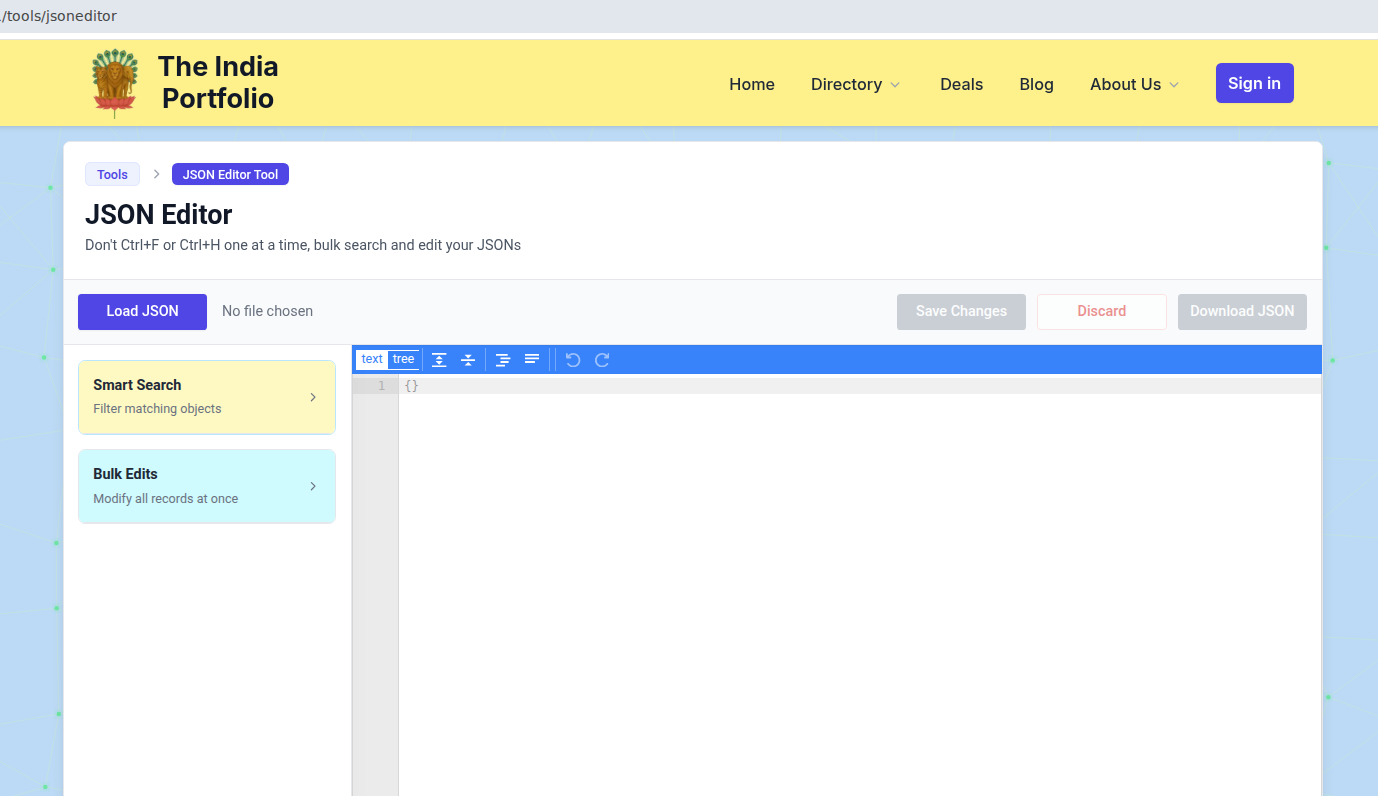
- Tool Interface
This is how the JSON Editor page looks like on load. Click the "Load JSON" button and select your JSON file. The tool supports files up to 60MB and validates the syntax immediately. If your JSON is valid, it loads into the visual editor on the right.
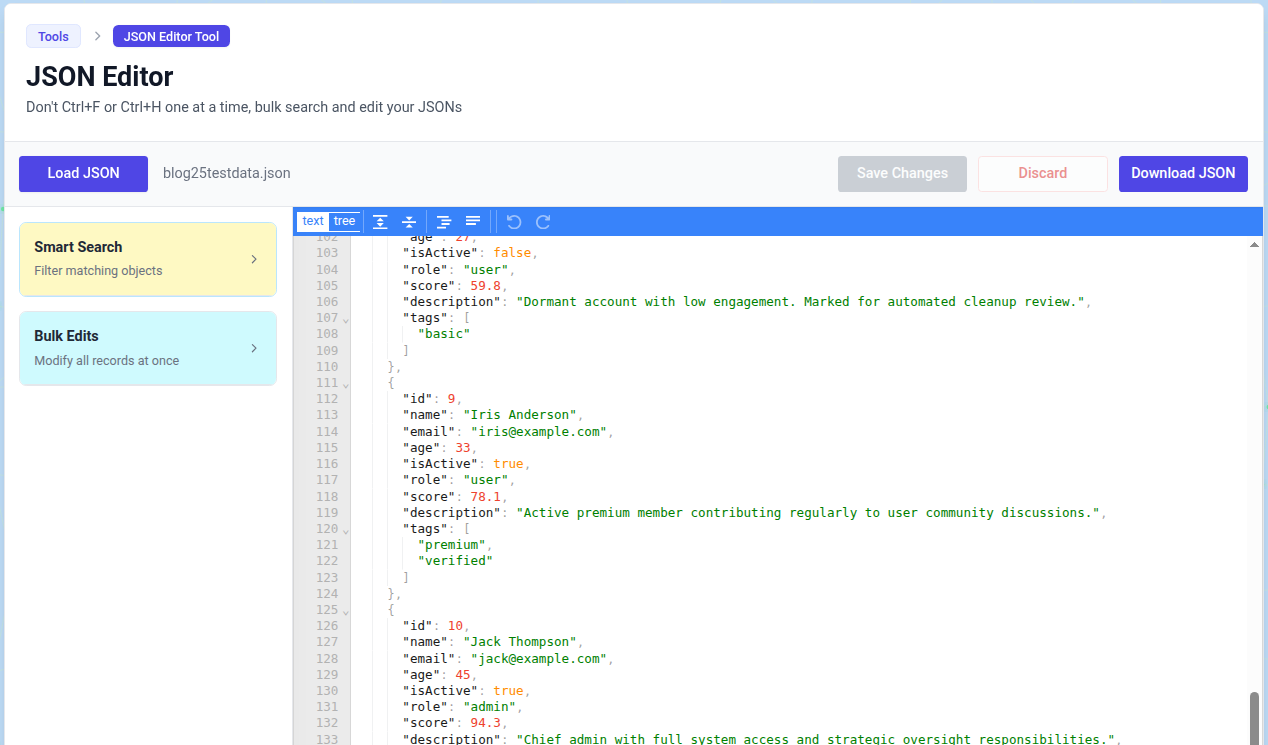
For this walkthrough, we will use this sample JSON file. Let's load the file into our editor
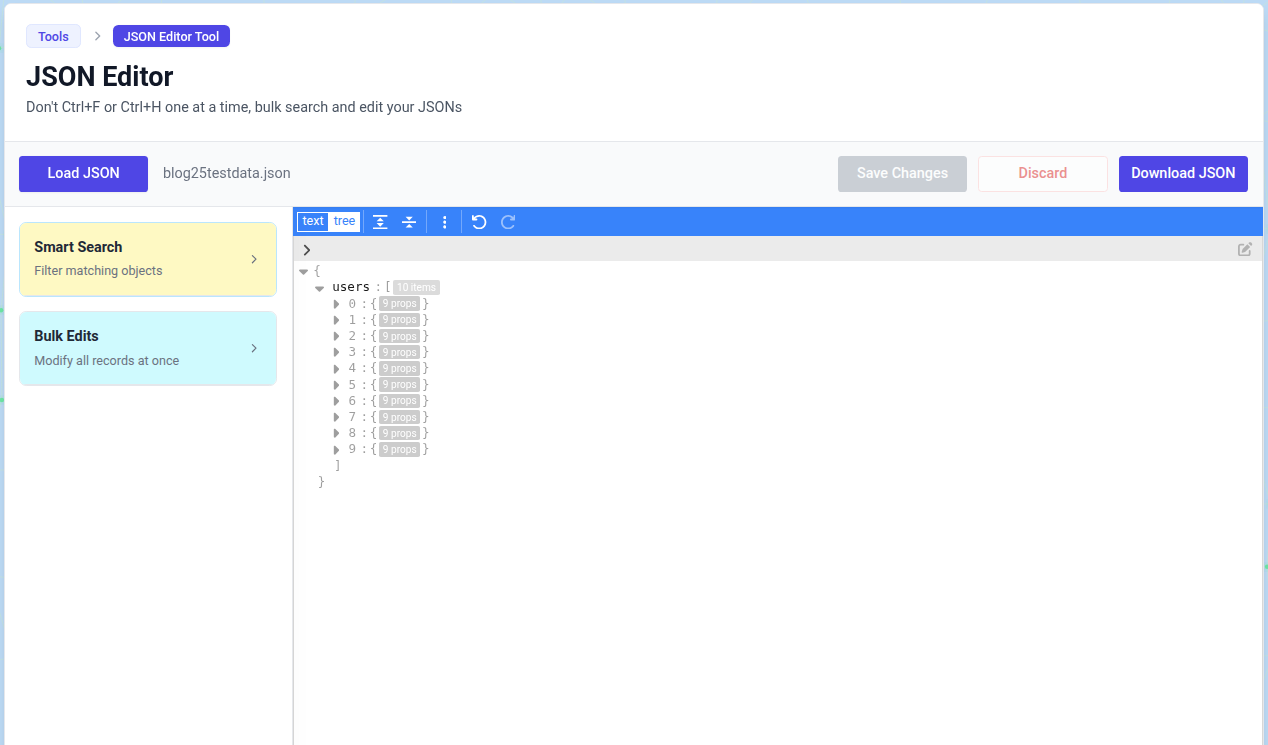
Note the "Text" and "Tree" modes in the editor header. Text is the default mode and shows the JSON file's contents. Tree mode is excellent for collapsing large nested objects in JSON.
- Using Smart Search
Open the "Smart Search" panel. Select a field from your data (the dropdown auto-populates with keys found in your file). Enter a value to match and choose "Exact" or "Contains". Clicking "Filter" will update the view to show only the matching records.
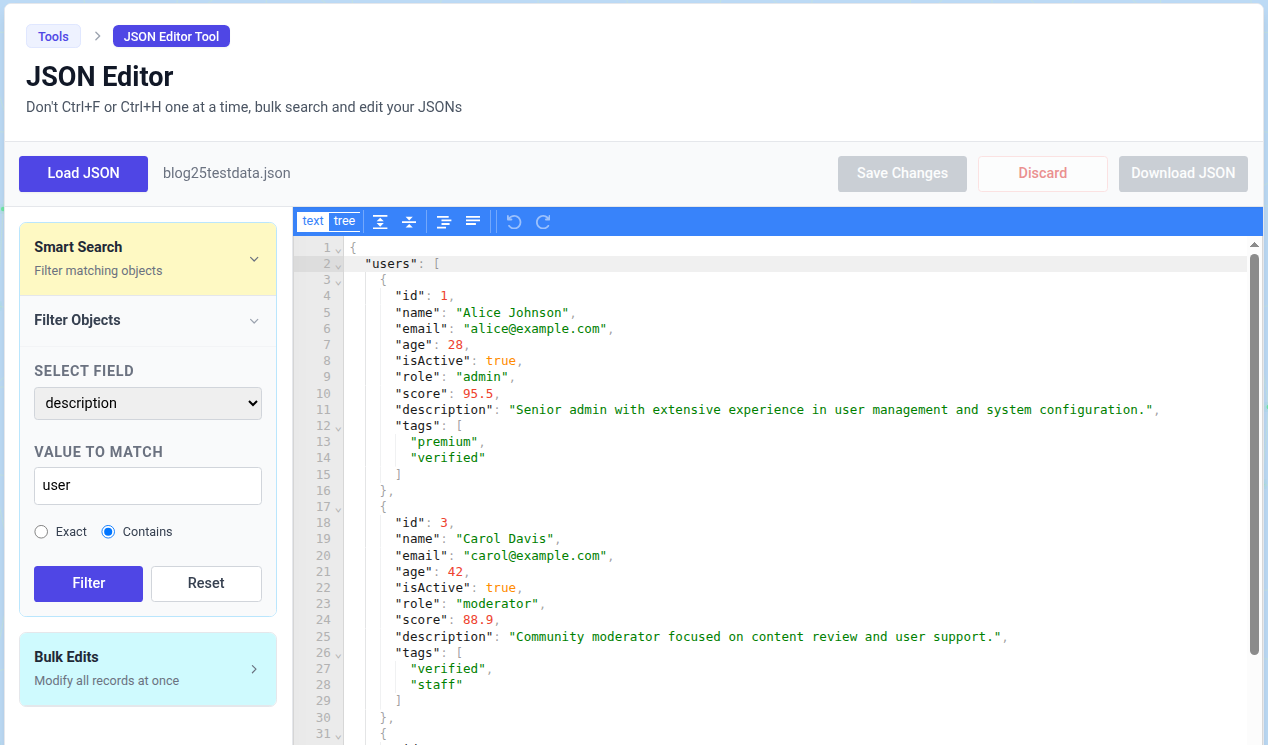
Note, here we searched for objects whose 'description' field contains the value 'user'. You cannot do such targetted searches using Ctrl+F or other online JSON editors. Ctrl+F will get you all references of 'user' in the JSON file. Other editors might support regex, but looking for matches within a specific field is beyond them. And if you work with JSON files and LLMs, you will know of such use cases, where you want very targetted searches into specific fields.
- Performing Bulk Edits
Switch to the "Bulk Edits" panel. Here you can perform three types of edits:
- Update a field's value for all objects in the JSON file.
- Add a new field (& default value) to all objects in the JSON file.
- Delete a field from all objects in the JSON file (delete the field altogether or if it has a certain value - both can be done).
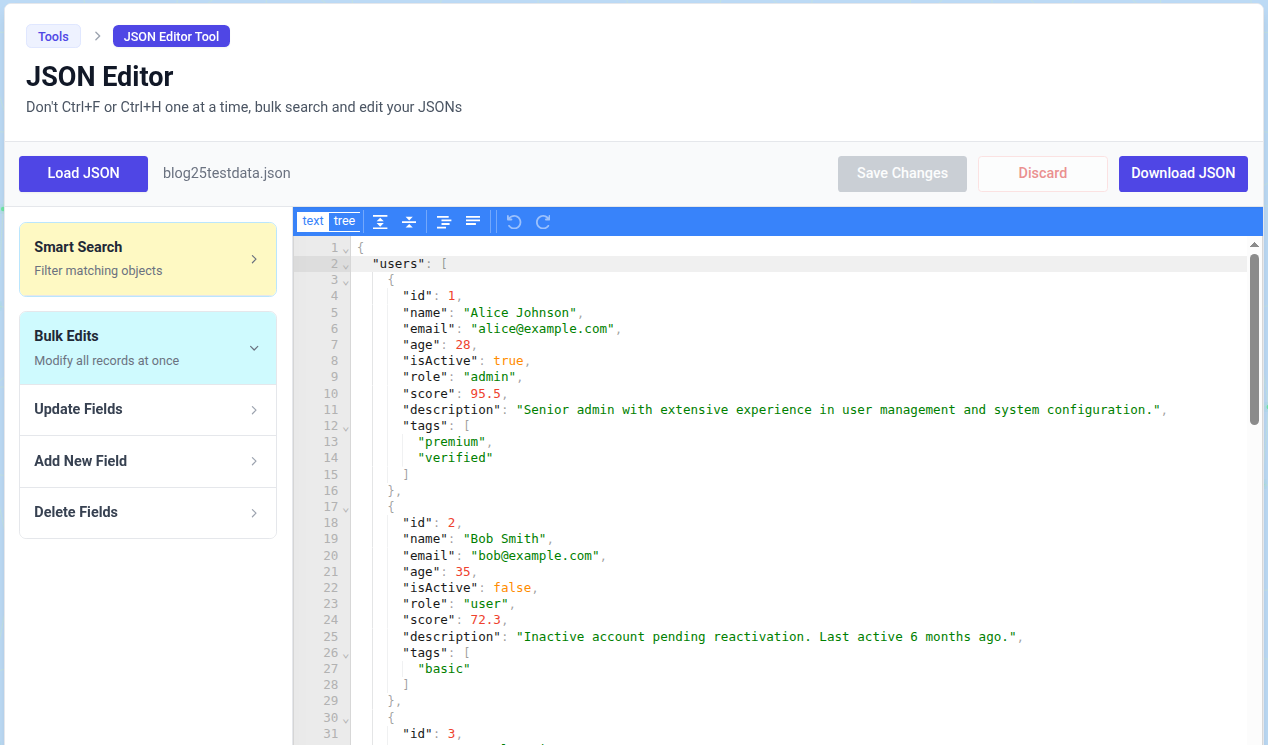
This is how to update all objects whose isActive field value is currently false to true. The editor recognizes boolean fields and will disallow non-boolean value updates. You also can toggle between exact and partial matches using the exact/contains radio buttons.
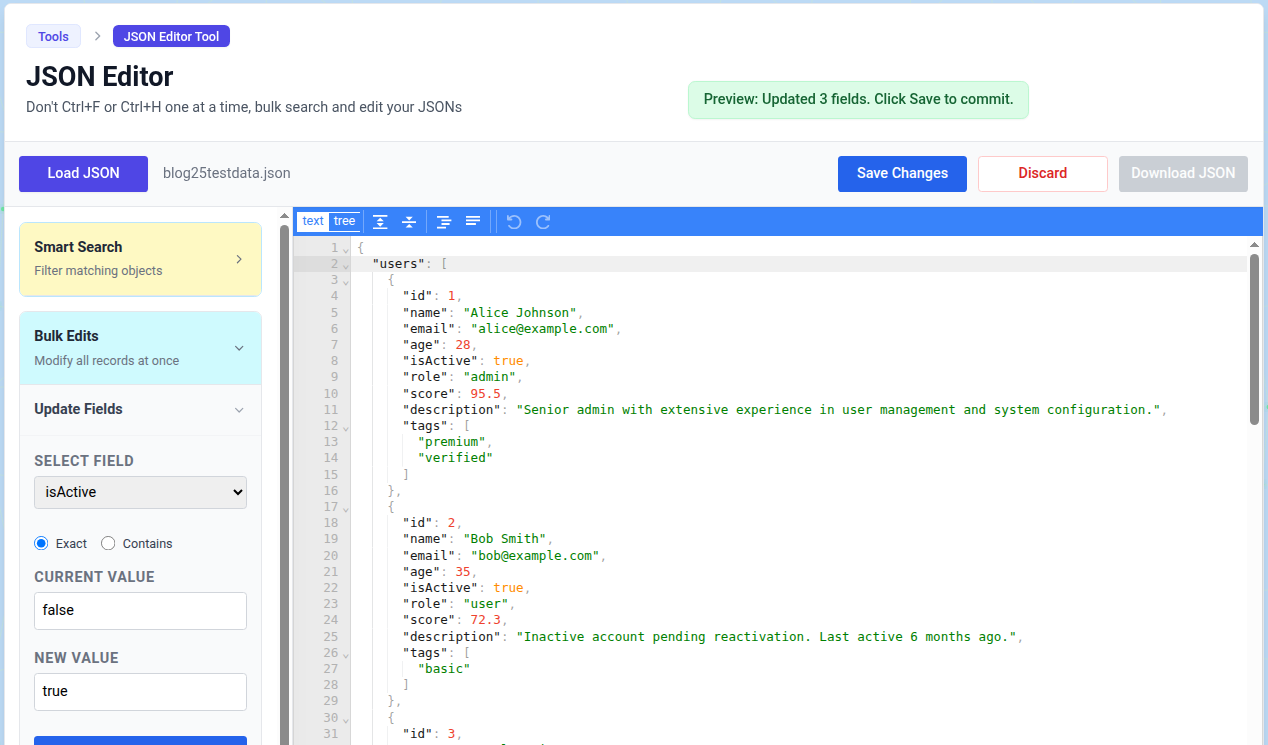
This is how to add a new field 'company_name' with value 'ACME Corp' to all objects in the JSON file. Boolean and string values are both supported. Note the change in the file and the success message on top indicating the new field has been added to all objects in the JSON file. You can immediately see this new field in the dropdowns under update and delete fields and also in smart search.
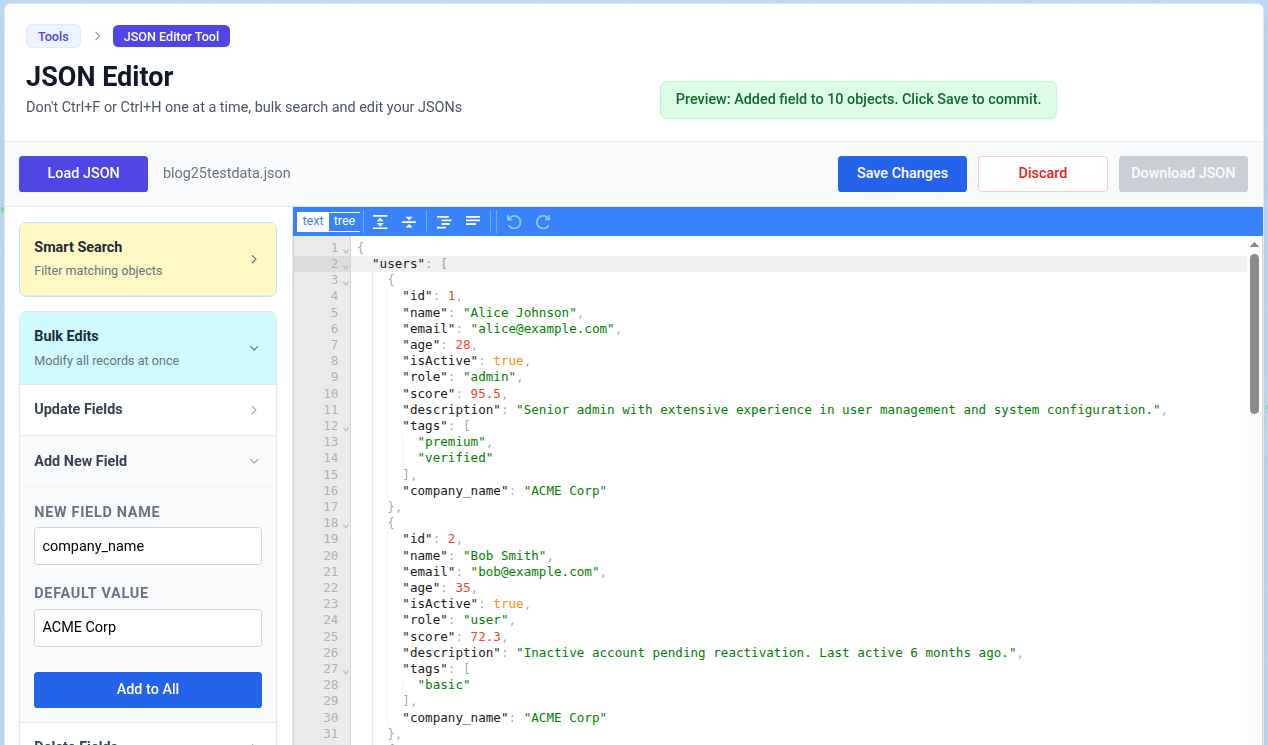
Next, let's delete the 'age' field from all objects if the 'age' contains the numeral 5. Note the age field got deleted only for select objects. There is also another nifty feature - if you want to get rid of a field from all objects, leave the Value to Match as blank.
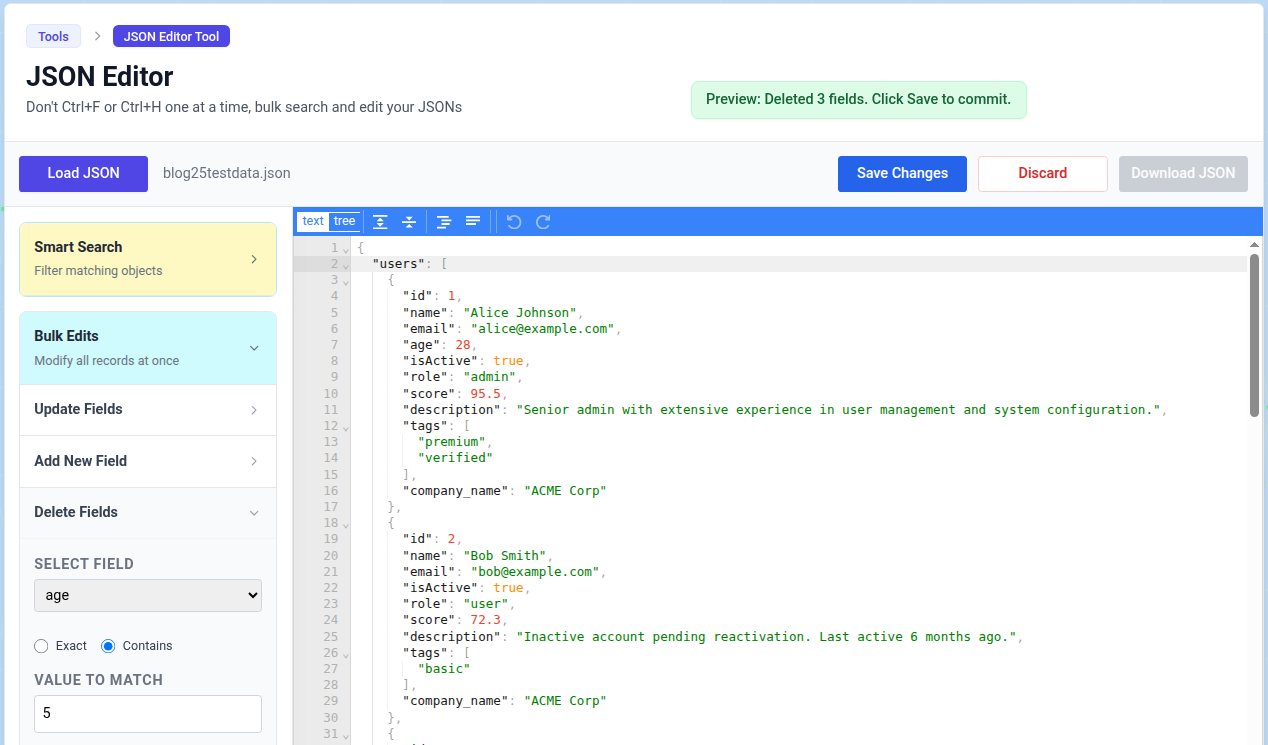
Across these examples of update, add or delete functions, you will notice this is way beyond the capabilities of Ctrl+H (which anyway cannot do add or delete operations) and even other JSON editors. If you work with JSONs and LLMs, being able to add or delete fields in JSON files is an annoying need. You can either keep writing custom code for each such situation, or you can just use our JSON Editor.
- Saving Changes
After having updated the JSON file, you can choose to either Save Changes or Discard (revert to previous state). You can keep progressively saving your changes or save all pending changes at once. Note, if there are unsaved changes, the download option will be disabled. Also, if you try to move from Bulk Edits to Smart Search, you will first have to save or discard any changes.
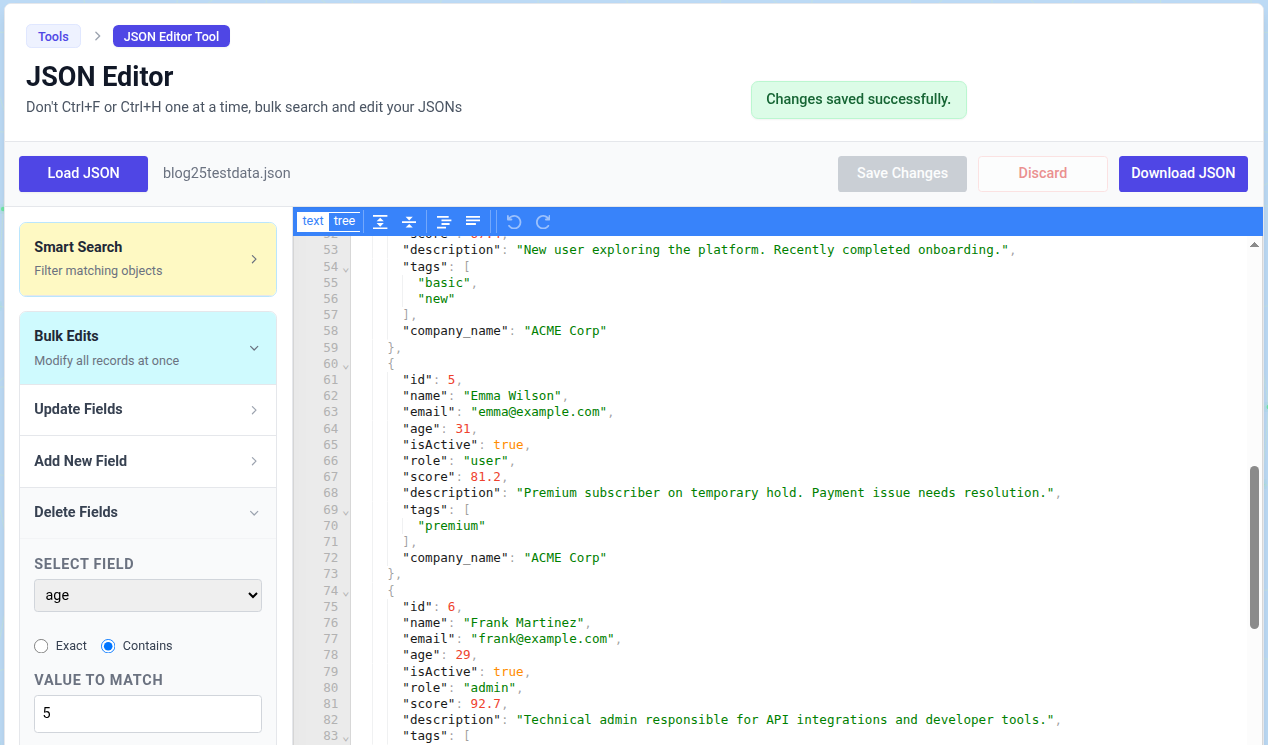
Let's save our data sample JSON and download it, you can see the edited version here
Troubleshooting
- "Invalid JSON Syntax" Error:The file you are trying to upload contains syntax errors (e.g., missing commas, unclosed braces). You must fix the file source before uploading.
- Download Button is Disabled - This happens for two reasons:
- You have a Smart Search Filter active and this is to prevent you from downloading just the search results instead of the whole JSON file. You must click "Reset" to return to the full view before downloading.
- You have Unsaved Changes. You must click "Save Changes" or "Discard" to resolve the pending edits.
- Searching for New Lines (\n) - The tool is intelligent enough to handle escape sequences. If you type
\nin the search box, it will look for an actual new line character, not the literal text "\n". - Root Object Keys not showing - The tool is designed to edit records inside lists. Keys belonging to the top-level root object (e.g., the wrapper
{ "users": [...] }) are intentionally excluded from the dropdowns to prevent accidental destruction of the file structure. - Any other issues - If you encounter bugs or have feature requests, please contact us.